Flash Cards for Any Subject (PyGame
Application)
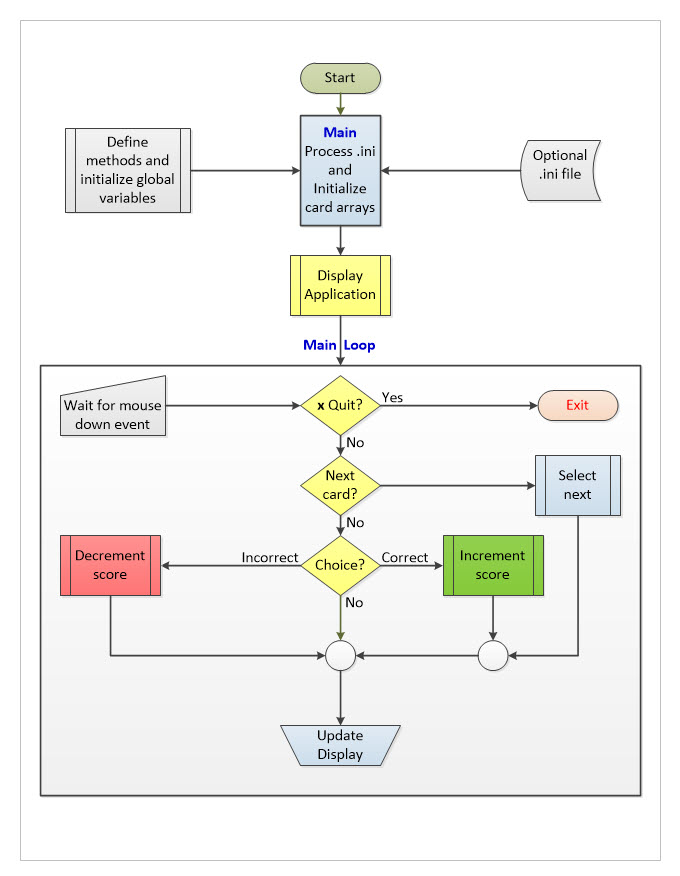
Flash cards are not much good for learning
math
or physics. However, they can be useful for pure memorization
exercises, such as learning names or dates or places, etc. Flash cards
normally have two sides, front and back. The front has some
representation of the challenge, or thing to be learned. The back
displays the answer, or perhaps multiple answers from which the learner
must guess the correct one.
For introducing an infant to the A, B, C’s, or a
school child to
multiplication tables, a deck of paper flash cards would likely work
best. The idea of simulating flash cards in a computer application came
from an effort to learn the basics of Shogi (Japanese chess) play
(https://lloydm.net/miniShogi.html).
One of the challenges was to learn the Kanji characters that identify
game pieces. At first I thought of making flash cards from a set of
blank index cards. However, I had been experimenting with the Python
pygame library for an unrelated application, and realized it would be
easy to use that same library for a virtual flash cards application. No
doubt there are many other ways to accomplish the same result, but
pygame was fresh in mind at the time.
In order to do anything, the Flash Cards application
requires data in
the form of one or more sets of cards (front and back) and some
additional information such as their file location and presentation
frequency. The rest of this page will describe how to use the
Flash Cards program to present a custom set or sets of cards. The
Python source code for the bare application may be examined or
downloaded here.
Bird Names – A Step by Step Example
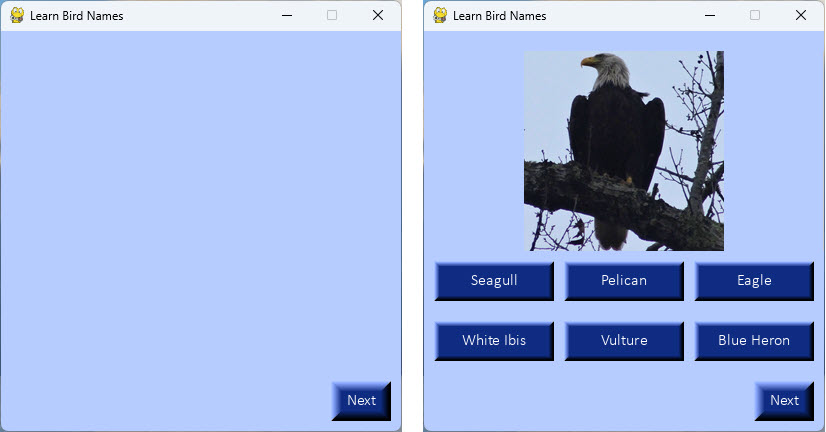
The illustrations above shows how
the program appears on
startup (left) and after clicking the ‘Next’ button (right). Clicking ‘Next’ presents the
first
pseudo-random image from an example set.
Step 1:
Assemble
a collection of images that reflects the subject of study. Bird photos
will serve for this example. In general, pictures that you own, public
domain collections, or images that have a permissive license are
preferred. Source images can be of any file storage type and size.
Step 2:
Use
an image editor, such as GIMP, SnagIt, or Corel Paint Shop to crop each
image and to change its largest dimension to approximately 200 pixels.
Finally, save the edited version in .png
format, preferably to a dedicated folder. Save all edited images of a
given flash card set in the same folder.
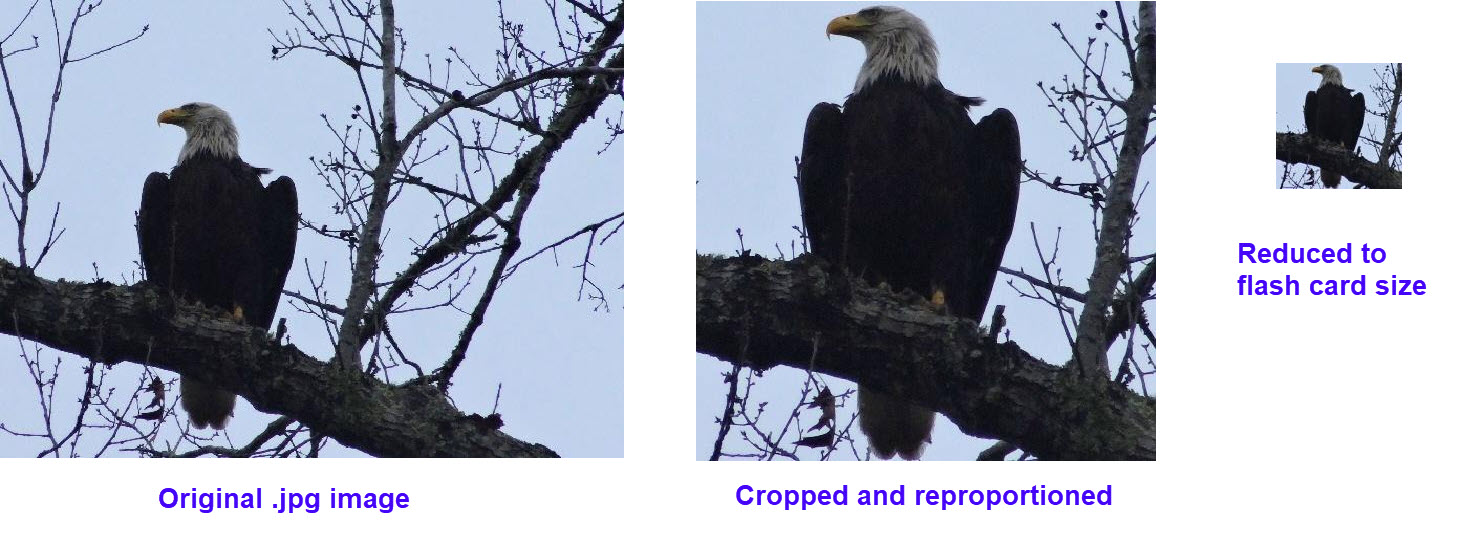
A one megabyte.jpg photograph will
illustrate the image editing procedure. At 3,707 by 2,722 pixels,
the eagle image was much too big for the
flash card display zone. Using an image editor, the height was cropped
to 1970 pixels, which captures the full bird’s height. The resulting
elongated image was then cropped on both sides, until its width and
height were the same, 1970 × 1970 pixels. Finally, the image editor was
used to reduce the size to 200 × 200 pixels. Image editors can lock
width
and height dimensions, shrinking both proportionately. The sequence of
images above illustrates the three main editing steps. Repeat these
steps for each flash card image in the set.
Generally a set consists of images from a particular
source, such as
personal photos. However, a single flash card application, such as one
designed to learn bird names, can be made from multiple sets of images,
for example, showing the same or different birds, and having names that
are shared by those in other sets. The advantages of making multiple
image sets will be further explained in a subsequent step.
Step 3:
Suppose that all of the images for a given set
have been stored in a folder. The next step is to make a list of the
set’s image file names. This can sometimes be done automatically by
listing the folder contents in PowerShell or at a command prompt, then
copy/pasting them to a file.
For the purpose of illustration I prepared a dozen
bird photo images
and put them in a sub-folder named Bird_PNGs. Listing the contents of
that folder using the PowerShell command “ls –name” produces:
BlueGold_Macaw.png
BlueHeron.png
Cardinal.png
Eagle.png
Pelican.png
PinkFlamingo.png
RedHeaded_Woodpecker.png
RedWinged_BlackBird.png
Seagull.png
Vulture.png
White_Ibis.png
YellowWarbler.png
Paste the file names into a text file (without the
indentation shown
above) and save the text file. I used the name “Bird_images.txt” for
this file. Neither the name nor
folder-location are important, but both will eventually be referenced
in an application .ini file, so that the
program can ascertain which flash cards to present. Make
a mental note of the file name and its
location.
Step 4:
Create another text file in the same folder as
the file containing the list of images. This file will also be
referenced in the .ini file, so make a note of the file name, for
example, “Bird_names.txt.” Its contents are the back-of-card names
corresponding to the images. The order of names must be the same as the
order of images, and as noted in the preamble, names should be no more
than 15 characters in length, in order to fit the application’s
selection buttons. In some cases it may be challenging to reduce the
description length meaningfully.
Blue Gold Macaw
Blue Heron
Cardinal
Eagle
Pelican
Pink Flamingo
Woodpecker
Blackbird
Seagull
Vulture
White Ibis
Yellow Warbler
Shortening “Red-headed woodpecker” to “woodpecker”
and “Red-winged
blackbird” to “blackbird” would not likely be approved by the birdwatcher
police, but this is a made-up example. The flash card application has
its limitations.
Step 5:
At this stage, one set of images and their names
are available to use in the ‘Bird names’ application. However, the
application may include more than one set. The
original Shogi flash cards application that ‘inspired’
this generic Flash Card application included five sets of images
and their descriptors. Each set must include a
minimum of six images, as there are 6 choice buttons for selecting the
correct back-of-card text, one correct choice and five distractors.
Each additional set of images may be stored in the same or a different
folder as previous sets. To illustrate how
multiple sets works I repeated the preceding steps for a second set of
images.
To be clear, images from different sources can be
folded into a single set, provided each image has a unique description.
It is not necessary to define multiple sets. However, an advantage to
defining multiple sets is that each may be assigned a weight, which
corresponds to the probability of an image from that set being selected
for presentation. Thus images belonging to different sources may be
presented more-or-less frequently, to correlate with the application’s
learning goals.
For this part of the example I
collected 10 additional bird images. The file
“Bird_images-2.txt” listed image file names. Corresponding descriptors
were listed in a file named “Bird_names-2.txt.” For convenience, these
‘meta files’ were saved in the Flash Card application’s root
folder, to be referenced in the application .ini file (next step).
Step 6:
This step knits the
application together by identifying its components and how they are to
be used. This information is recorded in an .ini file, a text file that
can be stored anywhere, but is most conveniently placed in the
application’s root folder. Each part of the .ini file for the ‘Bird
Names’ example is explained in the paragraphs to follow.
#
Keywords: caption, files, ...
# Title bar text: caption
<tab> application title
caption
Learn Bird Names
# Data files containing
lists of image file names and their
corresponding short descriptions
# files <tab> path
to files named on line <tab> image files
list <tab> PNG images path <tab> answers
file <tab> set weight
files
./
Bird_images.txt ./Bird_PNGs/
Bird_Names.txt 12
files
./
Bird_images-2.txt ./Bird_PNGs/
Bird_Names-2.txt 10
The ‘#’ character indicates the start of a comment.
Everything after ‘#’ on the same line is ignored. At present there are
only two keywords, ‘caption’ and ‘files’. Data fields in the .ini file
are <tab> delimited. Following the ‘caption’ keyword is a
<tab> (ASCII 9 not visible) and then the caption “Learn Bird
Names.” This caption will be displayed in the application’s title bar.
Rows that start with the ‘files’ keyword are the
most important. Following the first <tab> is the folder location
of the image list text file and the correlated names (or descriptions)
list file. In the first ‘files’ row illustrated above, both
“Bird_images.txt” and “Bird_Names.txt” are to be found in the
application root folder. The third <tab> delimited piece of each
‘files’ row is the name of the file that contains the list of image
file names (PNG files). The fourth <tab> piece is the folder
location of the image files themselves, i.e., the .PNG files. The fifth
<tab> piece is the name of the text file that contains the
descriptions of each image (in the same order their file names
are listed in the images text file). The last <tab> piece is a
number, 12 and 10 in the example. This is explained in the next
paragraph.
For ease of exposition, each image in the
demonstration example is equally likely to be presented. Since the
first set includes 12 images and the second set 10 images, the sets are
weighted accordingly. It would be possible to make a different rule.
For example, to present an image from the first set 90% of the time and
from the second set 10% of the time, the numbers 90 and 10 would work.
Equivalently, the proportions 0.9 and 0.1 could be specified, or any
pair of numbers that share the desired ratio.
Step 7:
The flash card application remains under development. Therefore the
application name may change as features are added or changed. The
current source code is named flash_cards.py. A command-line switch
selects the .ini file to load and run. Thus, the DOS or PowerShell
command:
python flash_cards.py -ini="Birds.ini"
would run Python to execute the current source with the demonstration
application described in the preceding paragraphs.
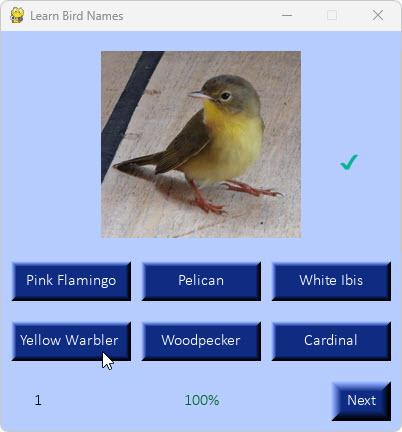
The illustrative clip above includes
the cursor to indicate that the correct button was clicked. Correct
responses are acknowledged by a green check mark. Wrong responses
produce a red ‘x’. All responses are scored. The total count of
responses and cumulative percent correct are displayed at the bottom of
the card.
Responses are not required. The ‘Next’ button can be clicked repeatedly to produce
new challenges. If cards are skipped without selecting an answer, they do not count toward the
percent correct score. It is also possible to cheat (in the current version) by repeatedly answering the
same challenge before clicking ‘Next’. That loophole will likely be plugged in a subsequent version.
Project descriptions are intended for entertainment only.
The author makes no claim as to the accuracy or completeness of the
information presented. In no event will the author be liable for any
damages, lost effort, inability to carry out a similar project, or to
reproduce a claimed result, or anything else relating to a decision to
use the information on this page.